
Using Skatter with Rayscaper
Skatter is a SketchUp plugin that scatters vegetation, rocks and other objects across surfaces. Rayscaper renders Skatter compositions without any setup: whatever Skatter generates appears in the render.
This guide takes you through creating a Skatter composition and rendering it in Rayscaper.
Prerequisites
Section titled “Prerequisites”- Skatter 2 installed in SketchUp
- Rayscaper 0.9.72 or newer, installed and working
How It Works
Section titled “How It Works”Rayscaper listens for Skatter’s composition updates. When Skatter generates or changes scattered instances, Rayscaper adds them to the render. There is nothing to enable or configure, so you can:
- Add, remove or change Skatter compositions and see the result in Rayscaper right away.
- Use Skatter’s paint masks, altitude filters and slope filters to control placement. Rayscaper renders exactly what Skatter generates.
- Combine several Skatter compositions, such as grass, flowers and trees, in the same scene.
Step 1: Prepare Your Scene
Section titled “Step 1: Prepare Your Scene”Start with a SketchUp model that has a surface to scatter objects on: a terrain, a rectangle as ground plane, or any face in your model.
-
Create or open a SketchUp model with ground geometry.
-
Make sure the surface you want to scatter on is a group or component. Skatter requires this.
-
Click Start Render on the Rayscaper toolbar, so you see the render update as you add scattered objects.
Step 2: Create a Skatter Composition
Section titled “Step 2: Create a Skatter Composition”Use Skatter’s tools to set up your scattered objects.
-
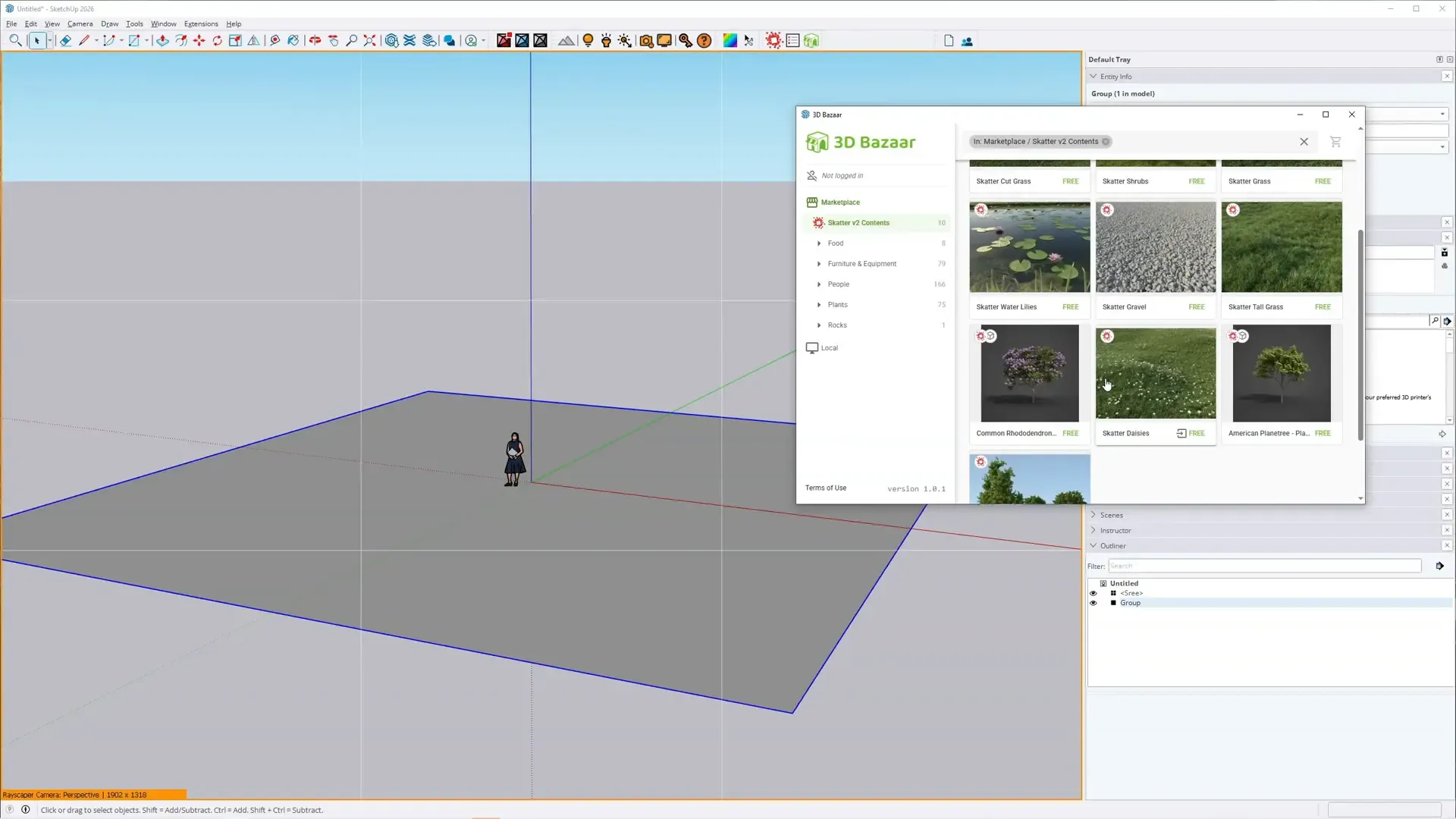
Open the 3D Bazaar window (Extensions > 3D Bazaar) to browse Skatter-compatible assets like grass, flowers, rocks and trees.
-
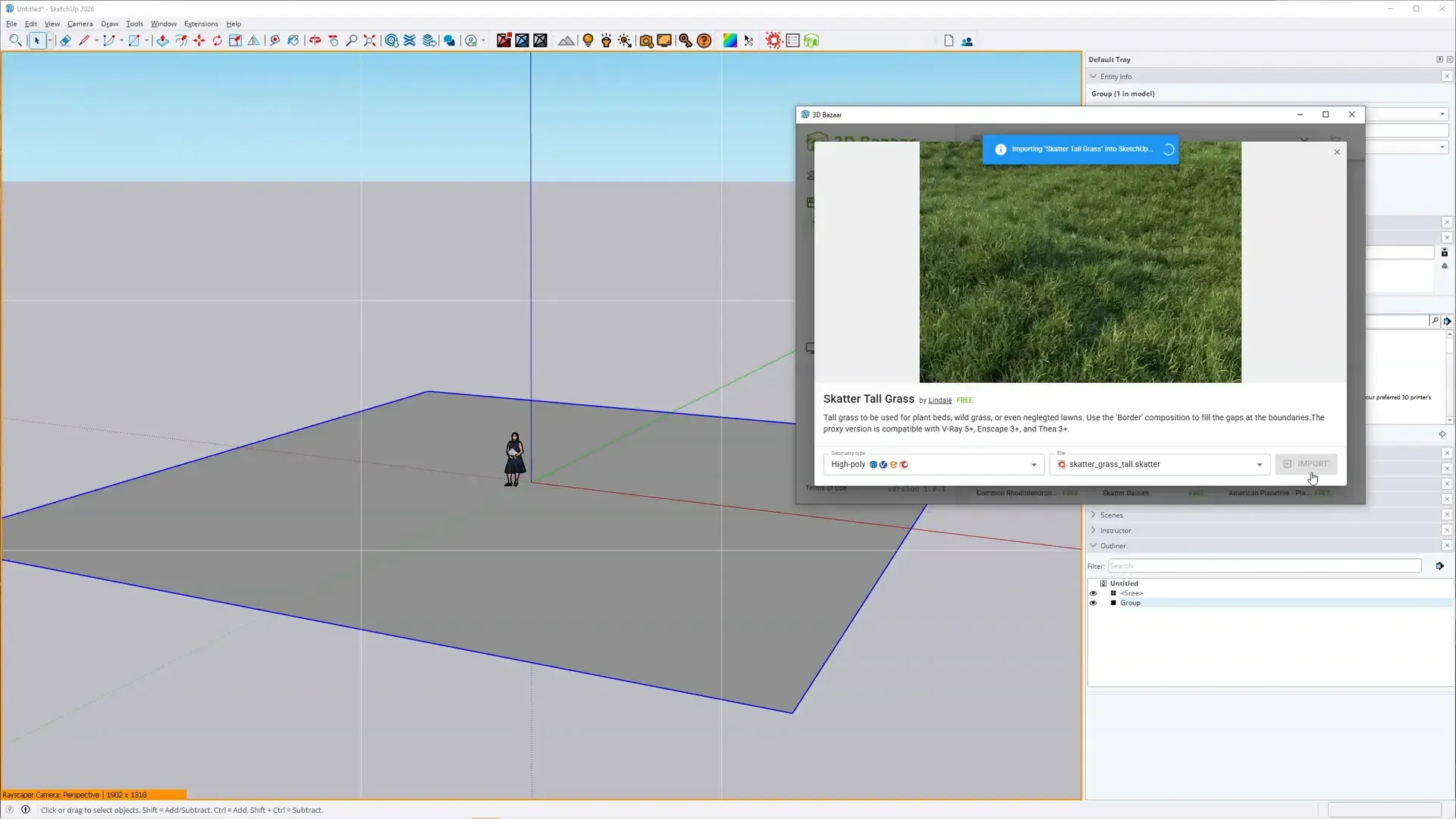
Select an asset (e.g. “Skatter Tall Grass”) and click the Skatter button to start a new composition.
-
The Skatter Composition Editor opens. Configure the scatter settings:
- Scattered objects: the components to scatter.
- Distribution: density, spacing and count.
- Masks: paint masks that control where objects appear.
- Filters: altitude and slope filters.
- Transformations: random rotation, scale and offset.
-
When prompted, pick the surface to scatter objects on by clicking the ground geometry in your model.
-
Click Generate to create the scattered instances.
In SketchUp the scattered objects appear as lightweight proxies, colored wireframes or bounding boxes, which keep the viewport fast.
Step 3: See the Result in Rayscaper
Section titled “Step 3: See the Result in Rayscaper”Once Skatter has generated the composition, switch to the Rayscaper window: the scattered objects are rendered with their full geometry and lighting.
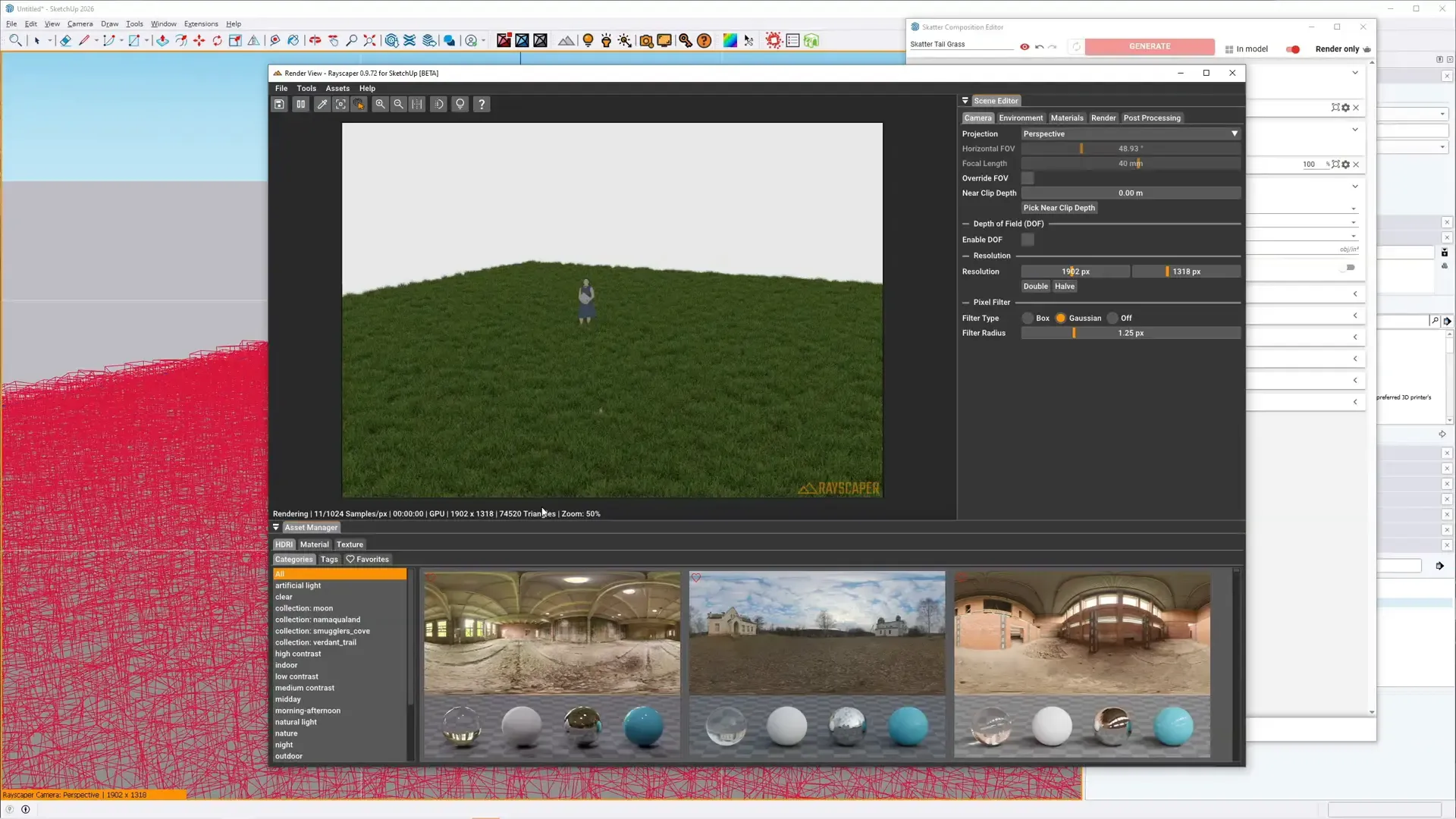
The red wireframes in SketchUp (left) are the grass in Rayscaper (center).
As you change the composition in Skatter, by adjusting the density, moving masks or regenerating, the render follows.
Step 4: Add More Compositions
Section titled “Step 4: Add More Compositions”Layer several Skatter compositions to build up a natural-looking environment:
-
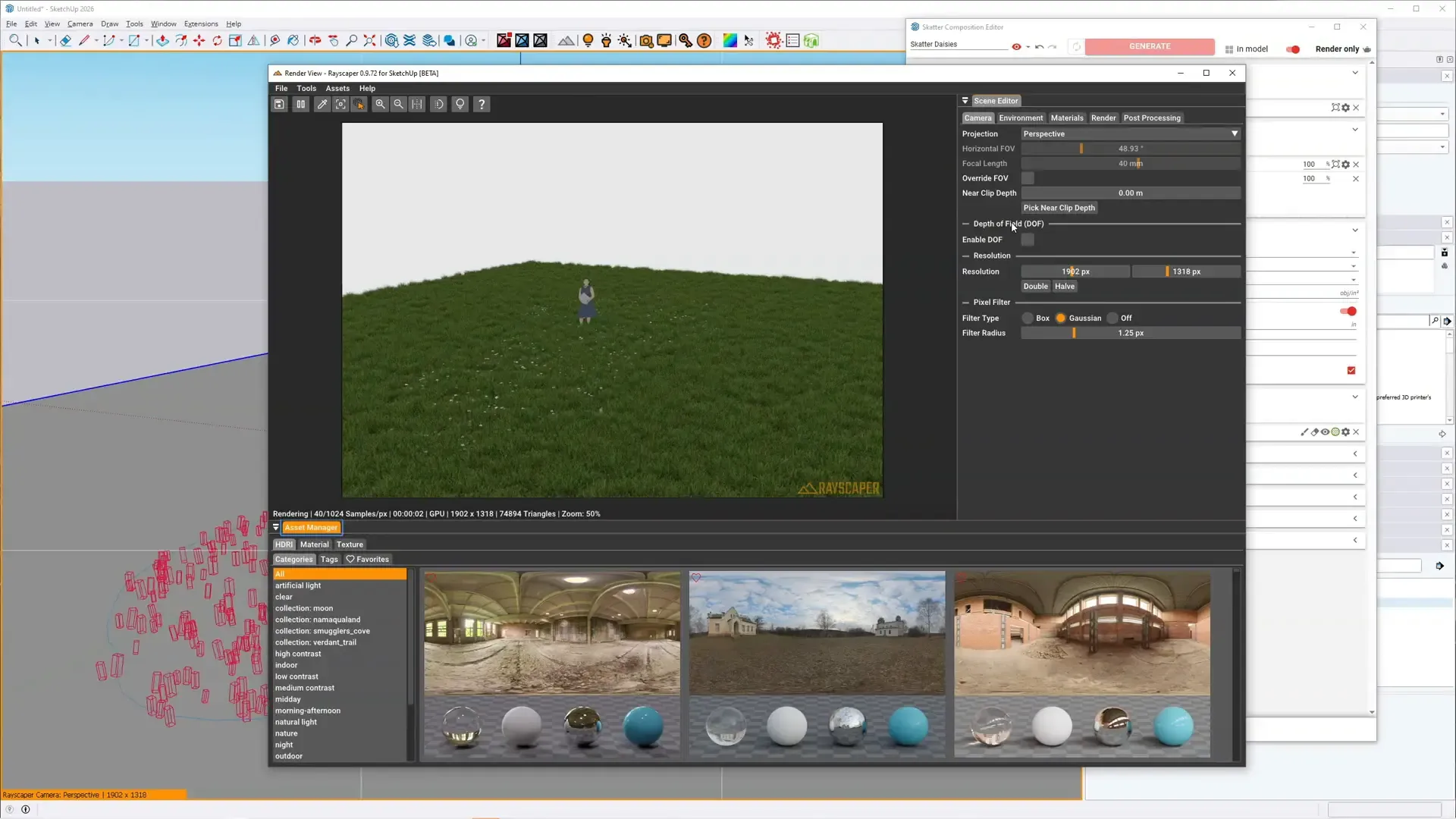
Create a second Skatter composition (e.g. “Skatter Daisies” for wildflowers).
-
Use a paint mask to control where the flowers appear: paint the scatter area directly on the surface in SketchUp.
-
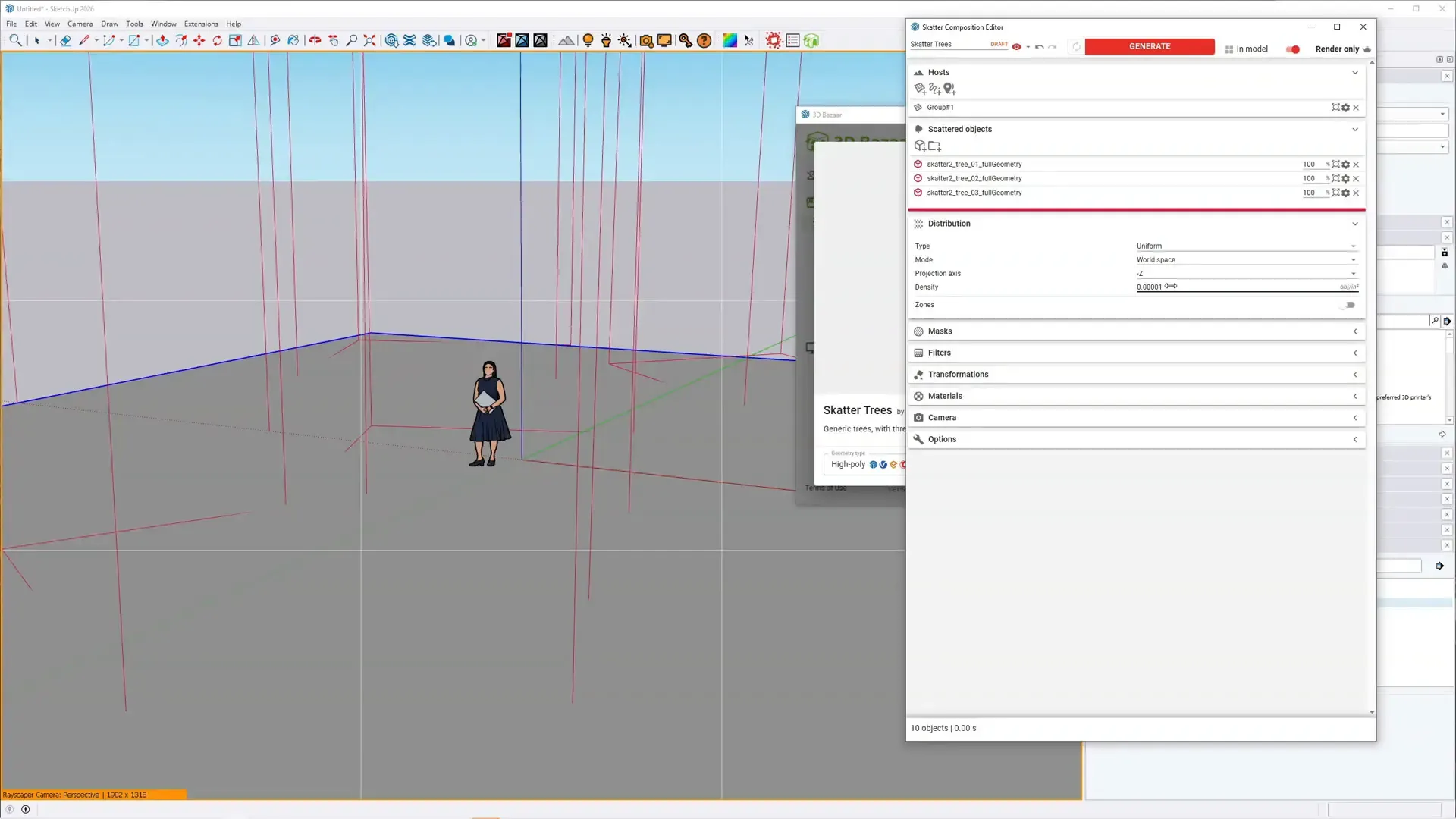
Add a third composition for trees, with lower density and larger spacing.
-
Each composition updates independently in Rayscaper.
Step 5: Final Render
Section titled “Step 5: Final Render”Set up your environment, camera and lighting in Rayscaper as usual. The Skatter objects are geometry like any other: they cast and receive shadows and show up in reflections.
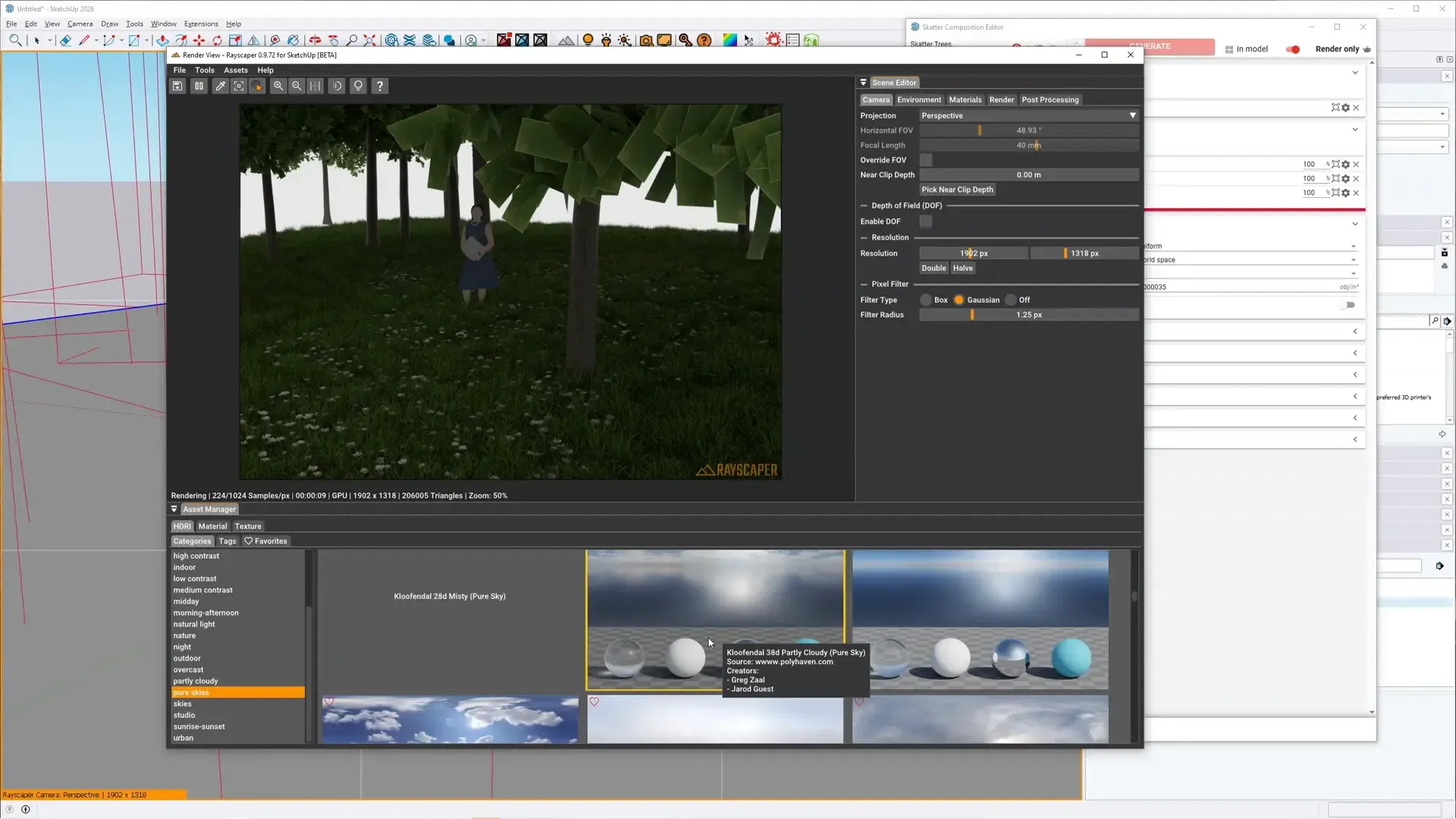
The final render with grass, daisies and trees, all placed with Skatter.
- Apply an HDRI environment for realistic outdoor lighting
- Adjust camera settings for depth of field
- Add lights for additional illumination if needed
- Performance: compositions with thousands of instances render fine. The proxies keep SketchUp responsive while Rayscaper handles the full geometry.
- Materials: the materials of 3D Bazaar assets are converted like any SketchUp material. Adjust them in Rayscaper’s Scene Editor, see Materials.
- Removing: when you clear or delete a composition, its instances disappear from the render.
- Several surfaces: scatter on different surfaces in the same scene. Each composition is independent.