
Auto Setup
A SketchUp material is a color and maybe a texture: it doesn’t say that a surface is glass, polished brass or a mirror. The name often does. When you render a model for the first time, Rayscaper reads the names of its materials and sets them up: “Window Glass” becomes Glass, “Brass” becomes polished Metal and “Antique Mirror” a mirror. It also asks whether the model is an interior or an exterior, and sets up the lighting for it. Your first render looks right without editing every material by hand.
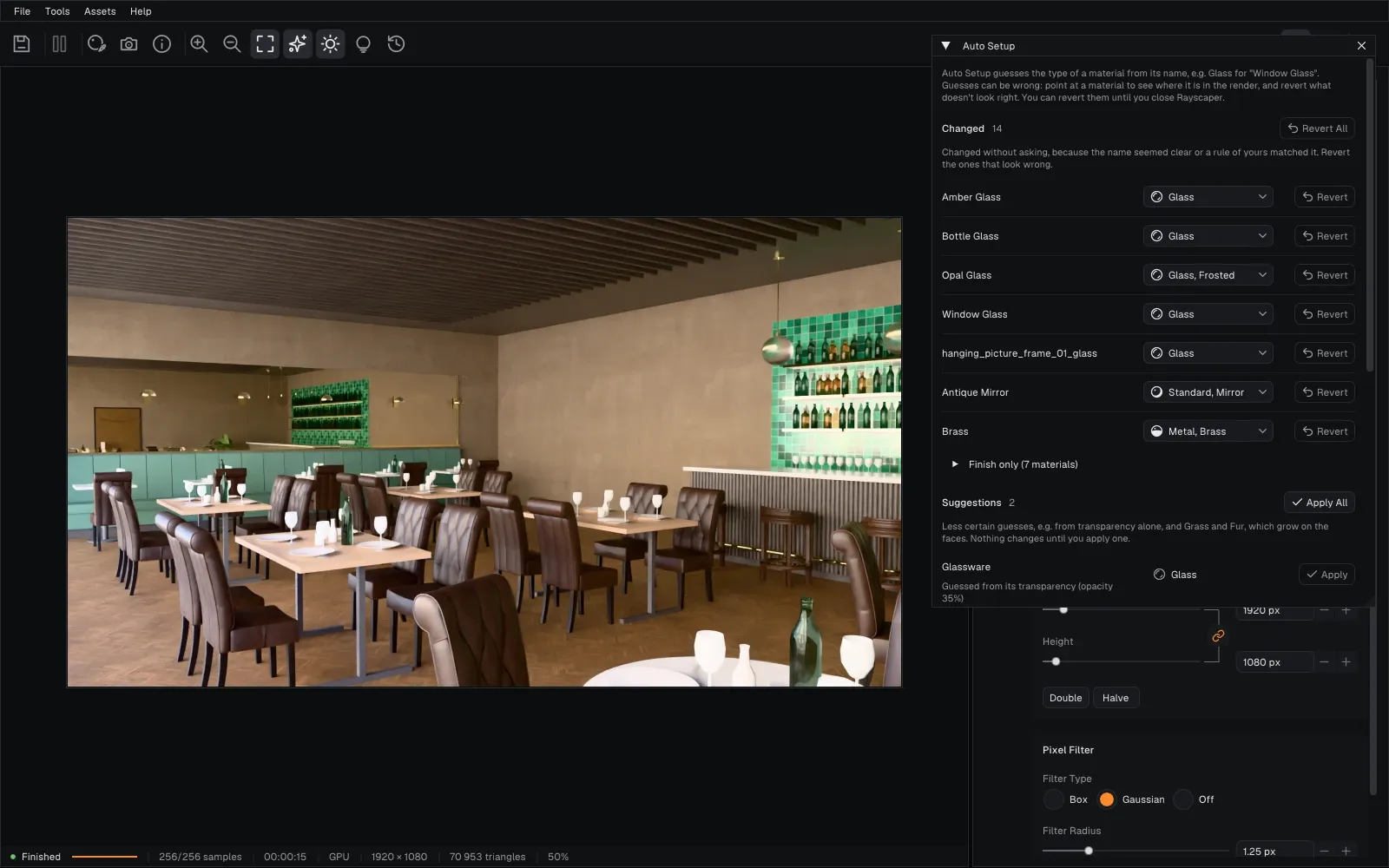
A bistro rendered for the first time. Auto Setup made its glasses Glass (the lamp’s opal glass frosted), the antique mirror a mirror and the brass polished Metal.
What Auto Setup Changes
Section titled “What Auto Setup Changes”Auto Setup only changes a material the first time Rayscaper sees it: the materials of a model you rendered before, and every change you made to them, stay as they are. A material you add to the model later is set up when it reaches Rayscaper.
- Changed without asking: materials whose name is clear, like “Glass”, “Chrome”, “Brass”, “Mirror” or “Pool Water”. They get the material type and the settings of that material: a metal gets the color of brass, gold or copper, and glass is clear or frosted.
- Finish only: materials such as wood, marble, tiles, concrete, plaster, fabric or leather stay Standard materials and keep their color and texture. They get a finish that suits them, from the gloss of marble to matte velvet.
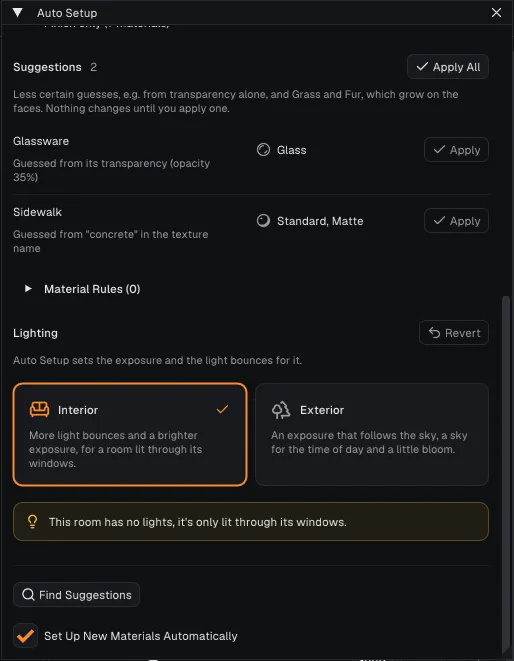
- Suggestions: guesses Auto Setup isn’t sure about, e.g. a material that is only transparent, or the Grass and Fur materials, which grow blades or strands on the faces and change how long a render takes. Nothing changes until you apply them.
Auto Setup knows the words in English and in other languages, e.g. Glas, Verre, Vidrio and Vetro for glass.
Review the Guesses
Section titled “Review the Guesses”A guess can be wrong. After Auto Setup changed materials, a notice says how many it changed and into what, e.g. “Glass (5), Metal (1), Finish only (7)”. Click Review Guesses in it, or choose Tools > Auto Setup Materials… in the render window, to open the Auto Setup window:
- Point at a material in the list to see where it is in the render: everything else is dimmed. Click it to select it in the scene editor.
- Choose another type in its list when Auto Setup guessed wrong.
- Revert puts a material back as it was, Revert All every material Auto Setup changed. You can revert them until you close Rayscaper. A material that you or SketchUp changed since the guess can’t be reverted here, so your change isn’t lost.
- Apply turns a suggestion into a change, Apply All applies every suggestion.
- Find Suggestions looks at the materials Auto Setup hasn’t seen, e.g. of a model you saved before Rayscaper had Auto Setup. It only suggests, it doesn’t change them.
Lighting
Section titled “Lighting”A room lit through its windows needs more light bounces and a brighter exposure than a building in the sun. When you render a model for the first time, Rayscaper asks whether it is an Interior or an Exterior: in a notice when Auto Setup didn’t change any material, else in the Lighting section of the Auto Setup window.
- Interior: more light bounces and a brighter exposure, for a room lit through its windows.
- Exterior: an exposure that follows the sky, a sky for the time of day and a little bloom.
Revert in the Lighting section puts the lighting settings back as they were. When an interior has no lights, the window offers Add a Light, which starts the Add Point Light tool in SketchUp.
Material Rules
Section titled “Material Rules”Auto Setup reads the names most people use. Your office may have its own: glass named M_GL_01, or materials named in
your language. Rules tell Auto Setup what your names mean. Open Material Rules at the bottom of the Auto Setup
window and click Add Rule.
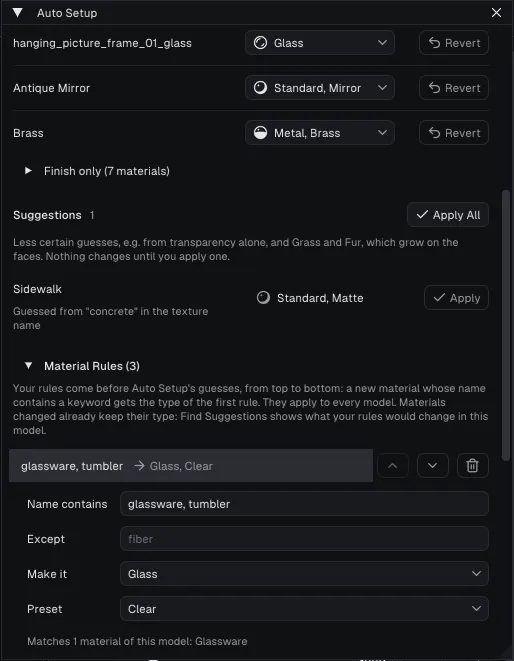
Auto Setup only suggested Glass for the bistro’s glassware, since it guessed that from its transparency. The open rule makes every material with “glassware” or “tumbler” in its name clear glass, without asking. The line under it shows the material of this model that it matches.
| Setting | What it does |
|---|---|
| Name contains | The words to look for, separated by commas: glass, verre, glazing. A material matches when its name contains one of them, in upper or lower case. |
| Except | Words that keep the rule from matching, separated by commas. fiber keeps “Fiberglass” out of a rule for glass. |
| Make it | The material type the materials get, or Leave as it is to keep Auto Setup away from them. |
| Preset | A preset of the type, e.g. Clear or Frosted glass, or Chrome or Brass metal. Keep its settings only changes the type and keeps the color and texture. |
A word with * or ? is a pattern for the whole name instead: * stands for any characters, ? for one.
| Rule | Matches | Doesn’t match |
|---|---|---|
glass | Window Glass, GLASS_01, Fiberglass | Glazing |
M_GL_* | M_GL_01, M_GL_Window | Old_M_GL_01 |
Wood_?? | Wood_01, Wood_AB | Wood_001, Dark_Wood_01 |
How rules work:
- Rules come before Auto Setup’s own guesses, from top to bottom: a material gets the result of the first rule that matches its name. Move a rule up or down with the arrows next to it.
- A material that a rule matches is changed without asking. The Auto Setup window says which rule set it.
- Rules apply to every model, on this computer. They’re kept in
material_rules.jsonin%APPDATA%\Rayscaper; copy that file to use your rules on another computer. - A rule applies to the materials Rayscaper sees for the first time. Materials that are set up already keep their type, so a new rule doesn’t change the model you’re working on. Find Suggestions shows what your rules would change in the materials Auto Setup didn’t change.
- An open rule shows which materials of the model it matches, and how many a rule above it decides.
Make a Rule from a Correction
Section titled “Make a Rule from a Correction”When you correct a guess in the Auto Setup window, a Make a rule button appears next to Revert. It adds a rule
with the word the guess came from and the type you chose, and opens it so you can check what it matches: a rule for
chrome also catches “Projector Chrome”. When a rule of yours made the guess, the button opens that rule instead, e.g.
to add an exception.
Turn Auto Setup Off
Section titled “Turn Auto Setup Off”The notice after Auto Setup changed materials has Revert and Turn Off, which puts the materials back and stops Auto Setup for new models. You can also turn Set Up New Materials Automatically off in the General tab of the settings. Your material rules are kept and apply again when you turn it back on.